
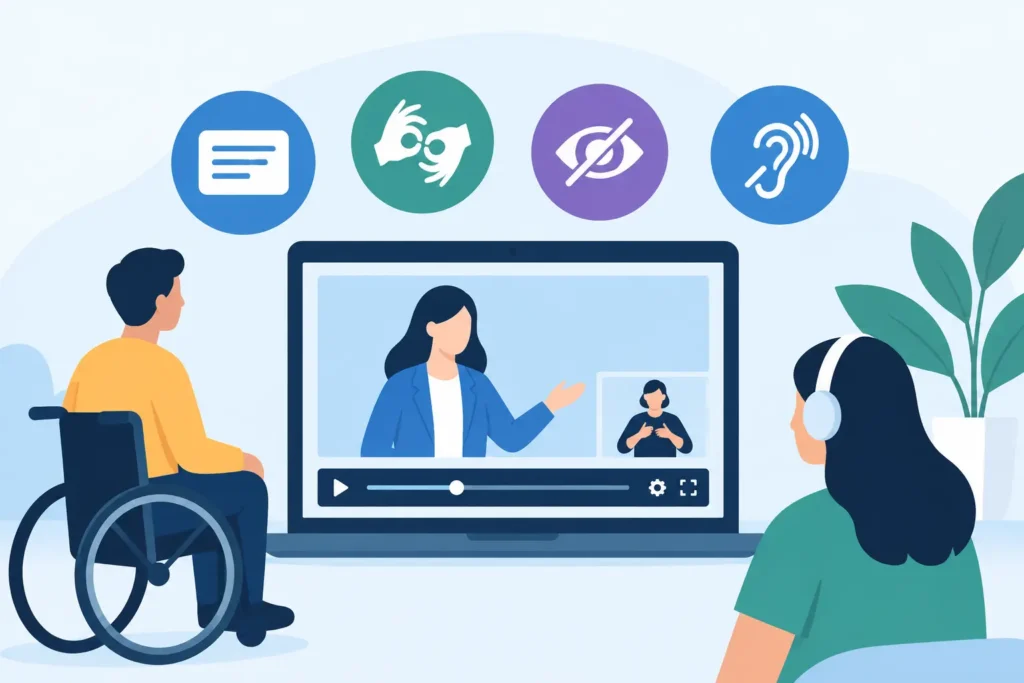
Video Accessibility Guide for Organizations
A video can be beautifully produced and still leave part of its audience behind. A donor watches without sound in a waiting room. A new employee needs clear captions during training. A community member who is blind needs spoken context for a chart, demonstration, or emotional moment. This video accessibility guide for organizations helps teams account for those real viewing conditions before the final edit makes changes expensive.
Accessibility is not a last-minute file request. It is part of clear communication. For marketing teams, public agencies, schools, nonprofits, and employers, that means making sure people can understand the message whether they hear, see, or interact with the video in the expected way.
Why accessible video belongs in the production plan
Captions, transcripts, and audio description are often treated as compliance tasks. They can be that, particularly for public-sector organizations, federally funded programs, education-related institutions, and teams with requirements connected to the Americans with Disabilities Act or Section 508. Legal obligations vary by organization and distribution channel, so specific compliance questions should go to qualified counsel or an accessibility specialist.
But the practical case is just as strong. Captions help people watching on mute. Transcripts make training content easier to search and review. Clear visual and spoken information gives more viewers a usable path through the story. Accessibility also improves internal approval. Stakeholders can read a transcript, confirm terminology, and flag sensitive language before a video reaches the public.
The trade-off is time. High-quality accessibility work requires planning, review, and sometimes a larger post-production budget. That is far less disruptive than rebuilding a finished video after launch because a key instruction only appeared on screen or a caption file was generated without review.
Build accessibility into the brief
Start before scripting, filming, or booking a location. The project brief should identify who needs to access the video, where they will watch it, and what action the organization needs them to take.
A recruiting video posted on social platforms has different needs than a 45-minute safety training module inside a learning platform. A public meeting livestream may need live captions. A donor-impact film may need a transcript and thoughtful audio description for the final version. The right approach depends on the audience, format, deadline, and platform.
Include these details in the brief:
- Primary audience and any known access needs
- Distribution channels, including social, web, events, learning systems, and internal platforms
- Caption requirements, language needs, and whether live captioning is necessary
- Whether visual information needs audio description or an extended-described version
- Who will review names, acronyms, technical terms, and final accessibility files
This is also the time to define ownership. Someone on the organization’s team should approve language accuracy. The production team should know which deliverables are required and when. One clear decision-maker prevents a caption review from becoming a loose email thread after the launch date is already set.
Write for ears, eyes, and screens
Accessible video starts with an accessible script. If a narrator says, “As you can see,” but the next point only appears in a small graphic, viewers who cannot see the screen receive incomplete information. The script should state the essential message out loud whenever possible.
For example, instead of showing a chart with no explanation, the narrator can say, “Applications increased 28 percent from last year, with the biggest growth in rural counties.” The graphic can still add visual impact. The spoken line makes the takeaway available to more people.
The same principle applies to instructions. If a training video shows a staff member completing a process, narrate the critical steps, button labels, warnings, and outcomes. Do not rely on a cursor moving across a screen to carry the lesson.
On-screen text should be large enough to read, displayed long enough to process, and set against a background with sufficient contrast. Avoid putting essential information at the very bottom of the frame, where player controls or social-platform interface elements may cover it. If a lower-third identifies a speaker, say the speaker’s name or role during the conversation when it matters to understanding.
Visual style still matters. Brand color, motion graphics, and a polished edit can all remain part of the work. The goal is not to make video plain. The goal is to make sure style does not obscure the message.
Captions need more than automated text
Auto-generated captions are a useful starting point, not a finished deliverable. They routinely miss names, local places, industry terms, acronyms, numbers, and punctuation that changes meaning. A mistake in a nonprofit leader’s name or a public-health instruction can damage trust quickly.
Good captions reflect spoken dialogue accurately and follow the natural pace of the conversation. They identify speakers when needed, include relevant sound cues such as [applause] or [door closes], and avoid covering important on-screen text. They should be synchronized to the video, not dropped in as a dense block of text.
For short promotional clips, burned-in open captions may be the right choice because viewers commonly watch social video with the sound off. For a website video, training module, or longer program, a selectable closed-caption file gives viewers more control. Many organizations need both versions for different channels.
Captions also need a final human review. Have someone familiar with your organization verify proper names, program titles, locations, and specialized vocabulary. This is especially valuable for Oklahoma organizations using local community, tribal, medical, educational, or public-service terminology that generic transcription tools may mishear.
Know when a transcript and audio description are needed
A transcript is a text version of the spoken content and meaningful sound cues. It is useful for viewers who prefer reading, people using screen readers, staff searching for a specific training topic, and anyone who wants to review a message without replaying the video. A transcript can be especially helpful for long-form interviews, board updates, internal communications, and recorded events.
Audio description addresses visual details that are necessary to understand the story but are not already spoken. It might describe a volunteer packing food boxes, a student using a new lab tool, a speaker’s demonstration, or the content of a data graphic. The description is typically placed in natural pauses between dialogue.
Not every video needs the same level of description. If the narration already communicates every essential visual point, additional description may be minimal. If a video depends on action, charts, visual humor, facial reactions, or text-only instructions, it may need more deliberate support. A strong production plan identifies these moments during scripting and editing rather than trying to force descriptions into a finished cut with no room to breathe.
Make livestreams and events accessible under pressure
Live video creates a different set of decisions. There is no opportunity to correct a caption error before it appears, and a fast-moving program can make accessibility feel like one more moving part. That is exactly why it needs an assigned plan.
For a public event, meeting, town hall, or major organization announcement, determine whether live captions are required or strongly recommended. Confirm how attendees will access them: in the video player, on a separate display, or through an event platform feature. Test the caption feed, internet connection, audio mix, and platform settings before doors open.
Give speakers practical guidance. Ask them to use microphones, avoid talking over one another, state their names before speaking when appropriate, and read essential on-screen information aloud. Share slides in advance when possible. These habits improve the experience for every attendee, not only those using accommodations.
After the event, do not assume the recording is ready to publish. Replace or correct automated captions, provide a cleaned transcript if appropriate, and check that the archived version retains its accessibility features.
Treat delivery as part of the job
An accessible master video can lose its value if it is uploaded to a platform with captions turned off, embedded in an inaccessible page, or exported in a format that strips out the caption track. Final delivery should include clear file naming and simple instructions for each channel.
Ask for a final review that covers the viewer experience, not just the edit. Play the video with captions on. Watch it without sound. Read the transcript without the video. Check whether the story still makes sense. If audio description is included, listen without looking at the screen. These are practical tests that reveal gaps quickly.
For recurring content, create a repeatable standard. Decide who requests captions, where transcript files live, how long reviews take, and which team owns publishing checks. Intent Productions often sees the biggest gains when organizations make these decisions once, then carry them into recruiting, training, event, and campaign work without starting over every time.
Accessible video is a sign of respect for the people your organization needs to reach. Plan for it early, assign it clearly, and give it the same care as the message itself. The result is not merely a completed requirement. It is communication more people can actually use.